

- Settings
- Menus
Settings
Menus
Choose sidebar groups, section dropdowns and page actions for the job they perform.
Navigation menus help readers move around the site. The Copy page menu offers
actions on the current page. Configure them separately in layout.json.
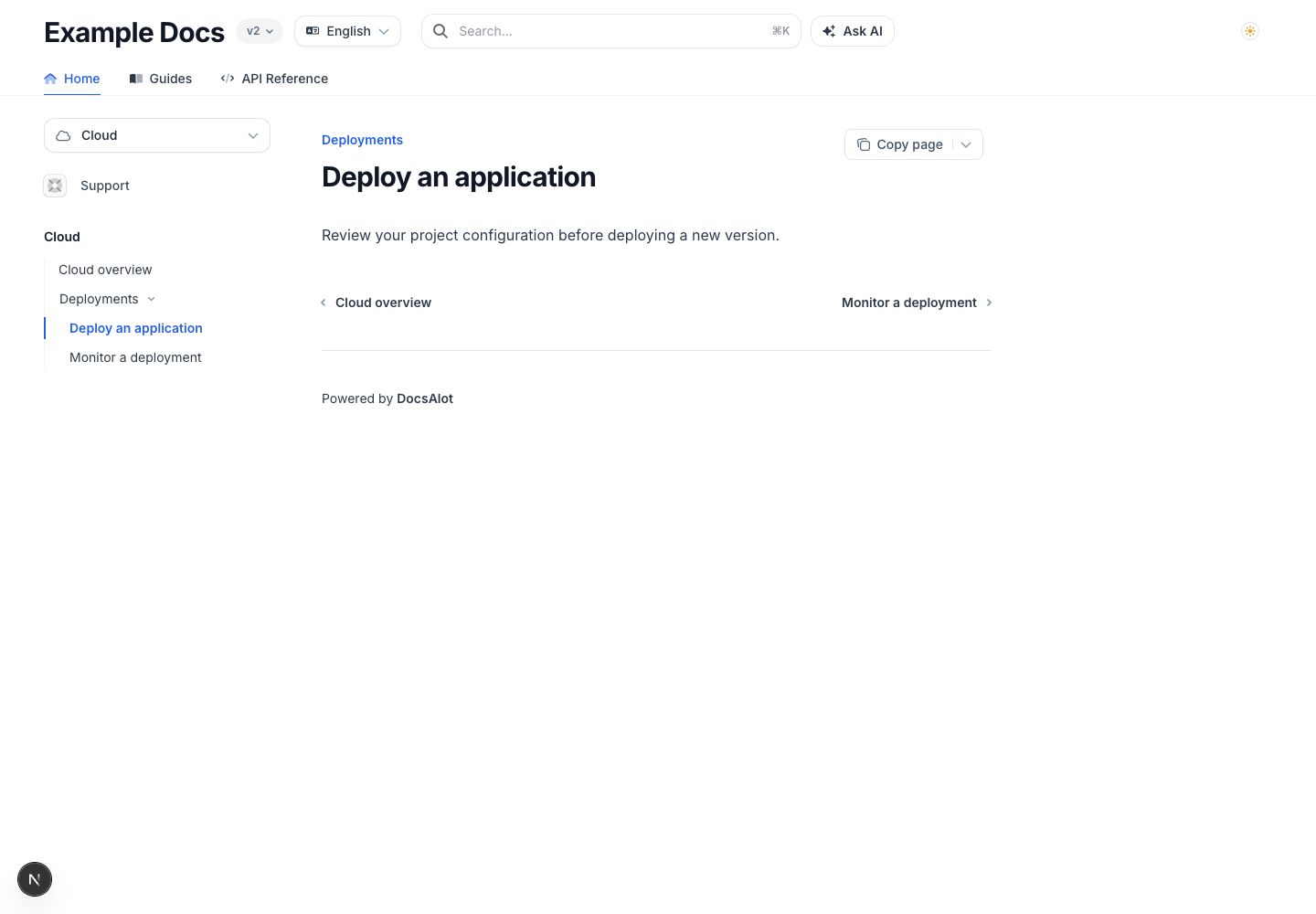
A nested sidebar group keeps related pages together.
Sidebar menus
Use nested groups for a collapsible section within a sidebar. Unlike a product dropdown, expanding a group does not switch the reader into another product area.
{
  "navigation": [
    {
      "group": "Getting Started",
      "pages": [
        "quickstart",
        { "group": "Guides", "pages": ["guides/install", "guides/publish"] }
      ]
    }
  ]
}
See navigation for page paths, groups and anchors, or dropdowns for the section selector.

The page menu offers the actions selected in contextMenu.options.
Page-actions menu
Use contextMenu.options to select actions for the Copy page menu:
{
  "contextMenu": {
    "options": ["copy", "markdown", "chatgpt", "claude", "pdf"]
  }
}
| Option | Action |
|---|---|
copy | Copy the current page as Markdown. |
markdown | View the Markdown version. |
chatgpt | Open the page with ChatGPT. |
claude | Open the page with Claude. |
perplexity | Open the page with Perplexity. |
cursor | Connect the docs MCP server to Cursor. |
vscode | Connect the docs MCP server to VS Code. |
claudecode | Copy the Claude Code MCP setup command. |
pdf | Prepare the page for the browser’s print/save-as-PDF flow. |
Omitting contextMenu.options keeps the standard actions, excluding PDF.
An empty array hides the menu. Unsupported option names are ignored. The array
selects actions; the renderer keeps its own action order.
Selecting an external AI or editor action opens another service. Review what you share there and verify any required client setup. Enabling a menu item does not grant access to private documentation.